
One quick productivity hack is to add command line aliases to your Terminal in Mac OS X.
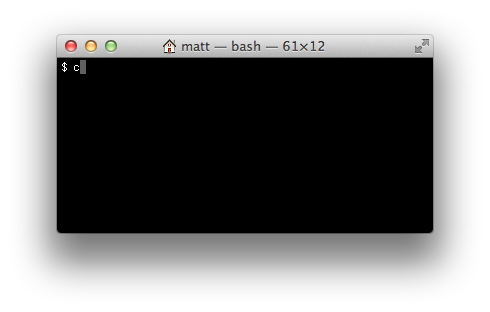
For example, I prefer typing c instead of clear to clear the terminal and I usually add all sorts of shortcuts for cd’ing into directories that I use often.
Here’s how to do it:
1) Navigate to your home directory:
cd ~
2) Open up .bash_profile using vi:
vi .bash_profile
3) Add an alias (press i):
alias c="clear"

4) Save the file (press Escape, type :wq, and hit Enter)
5) Restart Terminal
If you followed this example, you should now be able to just type c and Enter in Terminal to get the same affect as typing clear.
For more information, this post gives some additional examples of aliases you can add.
 Matt Mazur
If you have your inputrc configured to do shell history searching:
https://github.com/acdha/unix_tools/blob/master/etc/inputrc
and particularly if you configure your history file to avoid storing duplicates
https://github.com/acdha/unix_tools/blob/master/etc/bash_profile#L51-54
you end up with a fairly similar result simply by typing “c” and up-arrow – a surprising number of the commands I use end up having 1-3 character unique prefixes, particularly within a session, which allows me to avoid having to create many shell aliases.
(One other note: if you do create aliases, I strongly recommend storing your dotfiles in a Git repo so you can stay consistent across every machine which you work on)
Muchas gracias. Me ha sido de gran utilidad